
Field access
A role can be limited to some fields and languages, for example a translator who may read everything and only change the text of one language. The limits are Pimcore's own: a custom layout of the class for the fields, view and edit languages of the workspace for the languages. Keel enforces them on the server, everywhere it shows or changes data.
Nothing changes until you set a limit. Admins are never limited, and users without a limit work as before.
Set up a role
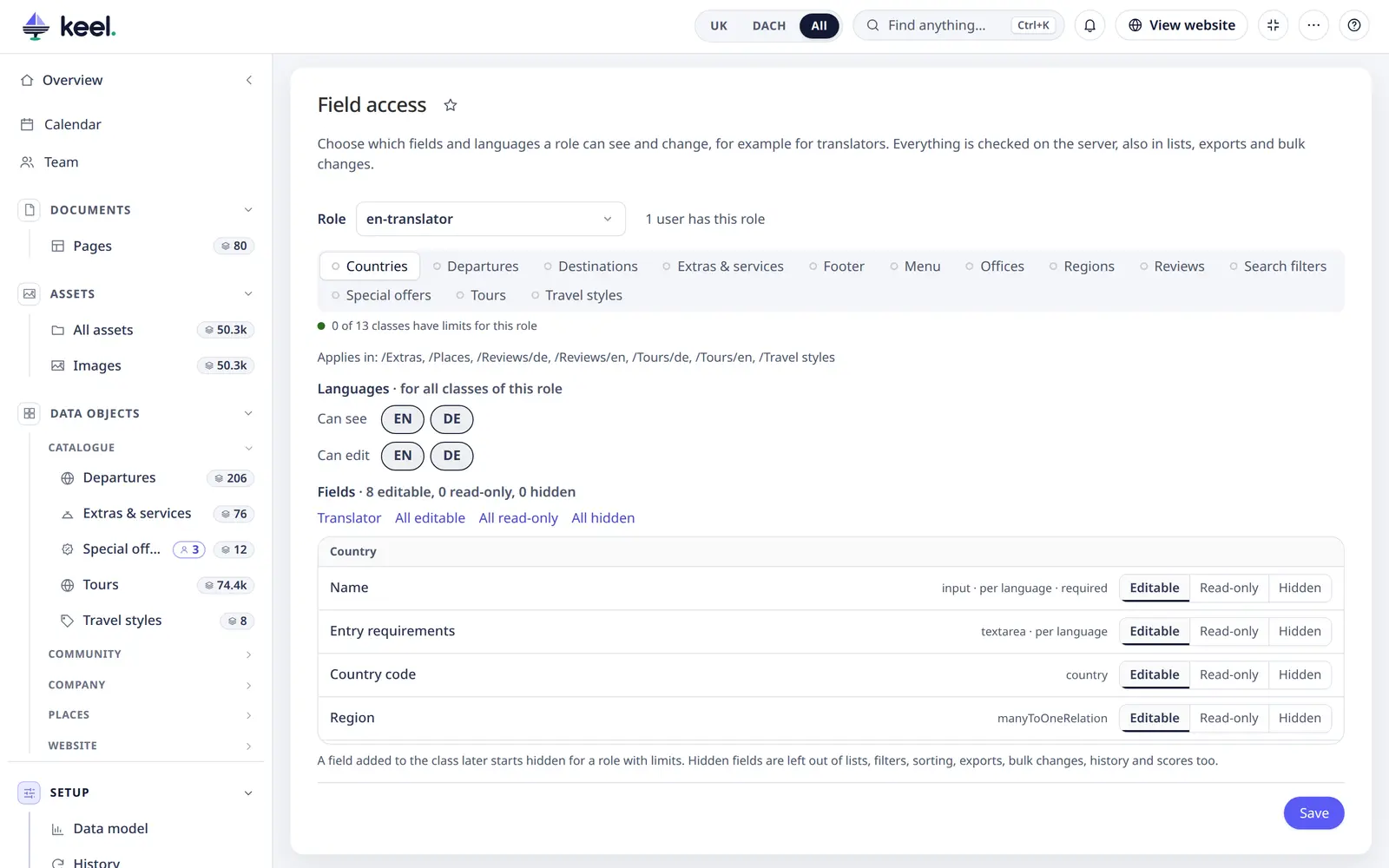
- In Pimcore, give the role its folders (object workspaces) as usual. Field access applies in those folders.
- In Keel open Setup → Settings → Field access and choose the role and the class.
- For each field choose Editable, Read-only or Hidden. Translator makes everything read-only except the fields per language; All editable starts over.
- On a site with several languages, choose what the role can see and can edit. A language has to be seen to be edited. Languages count for all classes of the role.
- Save. It applies the next time these users open a page.
A bricks field and a classification store each count as one field: Editable, Read-only or Hidden holds for all bricks or attributes in it. Translator leaves them read-only.
Setting every field to Editable and allowing every language removes the limit again. Nothing stays behind.
If the role already uses a custom layout set in Pimcore, the page says so. Saving here replaces it for this role.
What Keel stores
Only Pimcore's data: a custom layout named keel_role_<role>_<class> and the workspace rows of that role. The layout shows up in Pimcore's class editor too, and
Pimcore Studio honours it. It lives in Pimcore's settings store, so it works without a cache clear. A site that reads custom layouts only from configuration files
(read_target: symfony-config) refuses the save with a message: set the layouts in those files and name them in the workspaces instead.
You can also do this entirely in Pimcore: make a custom layout, tick it in the role's workspace and leave out the main layout. Keel follows it, tabs and order included. A field that is missing from the layout or invisible in it is hidden, one that is not editable there is read-only.
How the rules work
- The deepest workspace above an item decides, among the user and their roles, as in Pimcore.
- Two roles on the same folder add up: the user gets what either allows, and a role without a limit there lifts it. Several layouts become one form, the first one's tabs first.
- Lists use what holds in every workspace. Lists, columns, sorting, filters, search, Export and bulk changes follow the strictest of the user's workspaces. A field hidden in one workspace is not a column anywhere; it still shows in the editor of items in the other workspaces.
- New fields start hidden. A field added to the class later is not in the layout. Open the role here to set it.
- A layout that was deleted hides everything instead of opening everything: the workspace still says there is a limit.
What a limited user gets
| Where | With a hidden field |
|---|---|
| Editor, save, new items | The field is not sent and can't be written. A hidden mandatory field does not stop a save. |
| Lists, Columns, Filter, saved views | Not offered. A condition on it is dropped; Export, Select all and bulk jobs refuse it. Team views reach the user without it. |
| Sort | Not sortable. A list ordered by it falls back to Changed. |
| Search | Keel searches the database, only in fields the user can see. The search index covers all fields, so it is off for this user. |
| Name of an item | The next field that can name it, in the end its key. |
| Status | No chips, counts or pill. Read-only: shown, not changeable. Status notes in Activity are left out. |
| Workflow | One that keeps its place in the field is not shown and can't be run. |
| Export, bulk | Not in the file. Set field… does not offer it, and a running job checks its starter every slice. |
| Import | Hidden fields are no columns. Each cell is checked per item as the importing user, in the preview and again in the job, with the rule of the item's own workspace. A value they can't see stays empty in the preview |
| Completeness | The score counts only what the user can see, so it says nothing about hidden fields. It then can't sort or filter a list, and the overview card leaves the class out. |
| History | Changes of the field are not shown. Restore and Undo write only what the user may change. Site History shows today's name and no values. |
| Related tabs | A tab that goes through the field is gone. Read-only: the tab stays, without linking. |
| Preview | Off for that item: the page shows the whole item. |
| Data model | The field is left out. |
Languages work the same way: a language the user may not see is not in the editor, cells, names, Export, history or scores. Sorting and searching need the default language, so without it they use the key and non-translated fields only. In bulk changes, an item whose workspace refuses the language is reported, not skipped silently.
The preview is also off for a user with a language limit.