
Keel page check & Site check
Keel page check looks at one page the way a visitor and a search engine see it and tells you what to fix – in four areas, with a score from 0 to 100 each. The Site check does the same for all pages at once.
Check one page
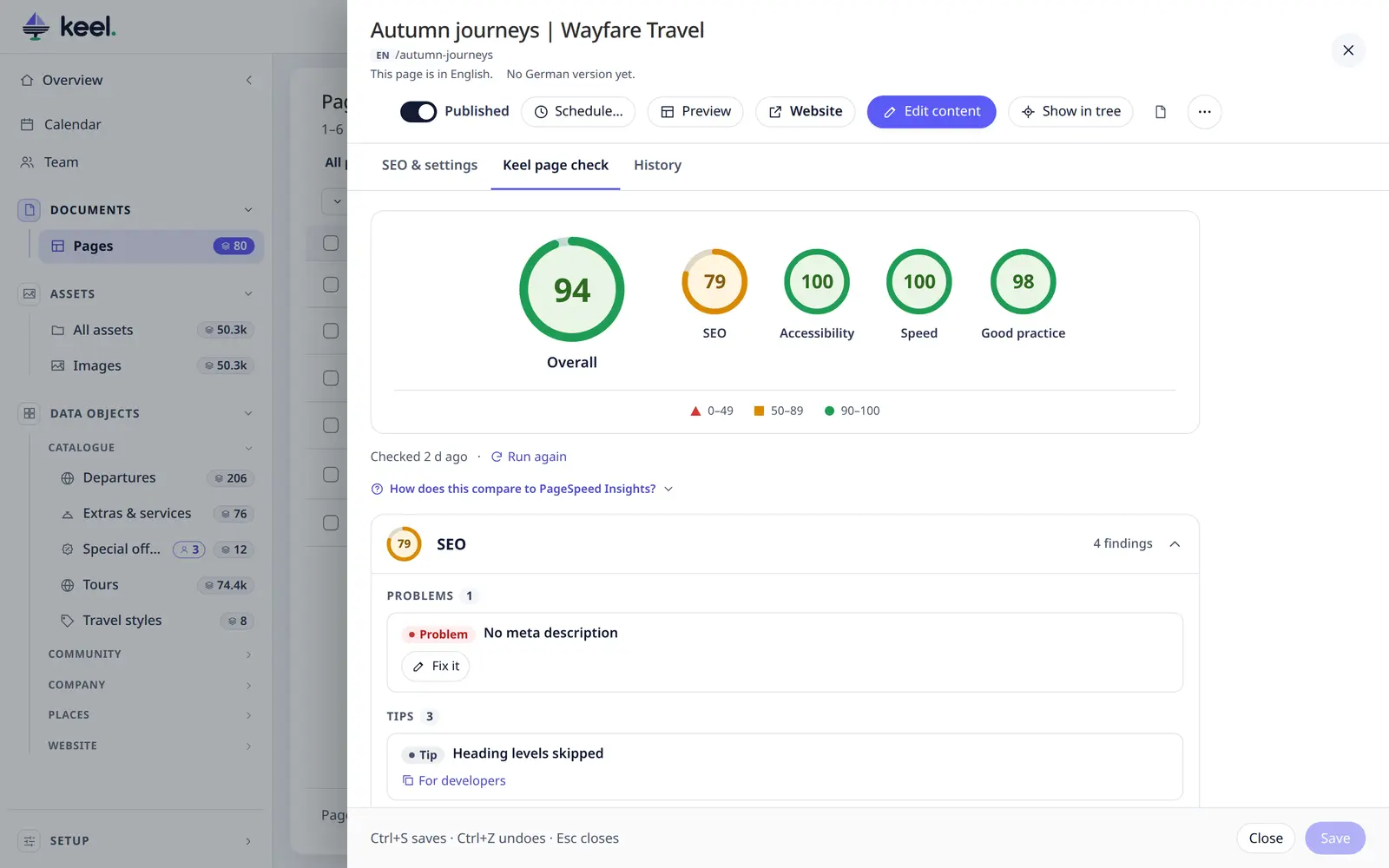
Open a page in Documents → Pages and click the Keel page check tab, then Check this page. It takes a few seconds.
The check always looks at the saved page, not at what you are typing. If you have unsaved changes, Keel reminds you; save first and press Run again.
Nothing on the page changes – the check only reads.
The scores
At the top you see a large Overall gauge and four smaller ones:
| Area | What it looks at |
|---|---|
| SEO | Title, meta description, main heading (h1), heading order, alt texts, link texts, whether search engines may list the page, canonical and language links, share image |
| Accessibility | Whether everyone can use the page: contrast, names of links, buttons and form fields, page language, and the other automatic tests of axe-core |
| Speed | Server response time, size of the HTML, page weight, number of files, image sizes, lazy loading, scripts that hold the page up, how fast the main content appears (LCP) and whether the layout jumps (CLS) |
| Good practice | Files loaded over insecure http, errors in the browser console, viewport tag, favicon, safe links to new tabs, outdated HTML tags |
The overall score is the average of the four.
The colours and shapes under the gauges tell you how to read a score:
- 0–49 ▲ – needs work
- 50–89 ■ – could be better
- 90–100 ● – good
Shapes are there as well as colours, so the scale also works if you cannot tell colours apart.
How a score is made
Every area starts at 100. Each rule that finds something takes points off – once per rule, not once per element. Ten images without alt text cost the same as one.
| Finding | Points off |
|---|---|
| Problem | 15 |
| Warning | 6 |
| Tip | 2 |
Accessibility findings count by how serious axe-core rates them: critical 15, serious 10, moderate 5, minor 2. A score never goes below 0.
Keel page check and PageSpeed Insights
Both give scores from 0 to 100, but they measure different things, so the numbers are not the same.
| Keel page check | PageSpeed Insights (Lighthouse) | |
|---|---|---|
| Where it runs | In your browser, on the saved page as your own server renders it | On Google's servers, on the public address only |
| Speed | Measured on your connection and computer | Simulates a mid-range phone on a slow mobile network, so the Speed score is usually lower |
| Scores | Keel's own: each area starts at 100, every rule that finds something takes points off | Weighted timings (Lighthouse's own formula) – a 90 here is not a 90 there |
| Accessibility | axe-core | axe-core too, so the findings mostly match |
| Real visitors | – | Field data from real Chrome visitors over the last 28 days, when the page has enough of them |
| Fixing | Fix it in Keel, and task text for developers | A report to read |
Use Keel page check while you edit, before and after you publish. Use PageSpeed Insights for the real-world speed of a public page.
The list of findings
Each area is a section you can open and close. Areas with a Problem open by themselves. Inside, findings are sorted into Problems, Warnings and Tips. Each one says what is wrong, how many places are affected (×3) and how to fix it. Details shows extra information such as the console messages.
Show on page opens a copy of the page with the affected elements highlighted; use Previous and Next to move between them. The copy has no scripts, so it can look slightly different from the website.
At the bottom, N passed checks lists the checks that were really done and found nothing. A check that could not run is not listed there – Keel does not claim a pass it did not measure.
Fix it
Next to the findings, Fix it helps with what Keel can solve from the page itself. Nothing is invented by an AI, and nothing leaves your server.
- Meta description and title – Keel suggests a text made from the page's own text and fills it into the SEO tab. You check it, change it if you like and press Save yourself. This works only when the page's own setting drives what the website shows. If the template ignores the setting (for example the page already has a good title or description, but the template shows another one or none), changing it would do nothing, so Keel offers Copy task for developers instead: the template has to use the page title or description.
- Alt texts – for images that come from Assets. You write the text and confirm; it is saved with the image in Assets, so it applies wherever the image is used. The page only shows it if the website's template uses Pimcore's image output. If it does not, the finding is a task for developers.
- noindex – can be switched off here only when it comes from the page's own setting (you confirm first and the page is saved).
- Share image – pick it from the library; it is saved when you press Save.
- Everything else – Copy task for developers puts a ready text on the clipboard for a ticket or a message. Findings that come from the website's template land in For developers.
For developers: on any finding that has no Fix it, it copies the same ready task text (page address, what is wrong, where on the page, how to fix it).
Site check
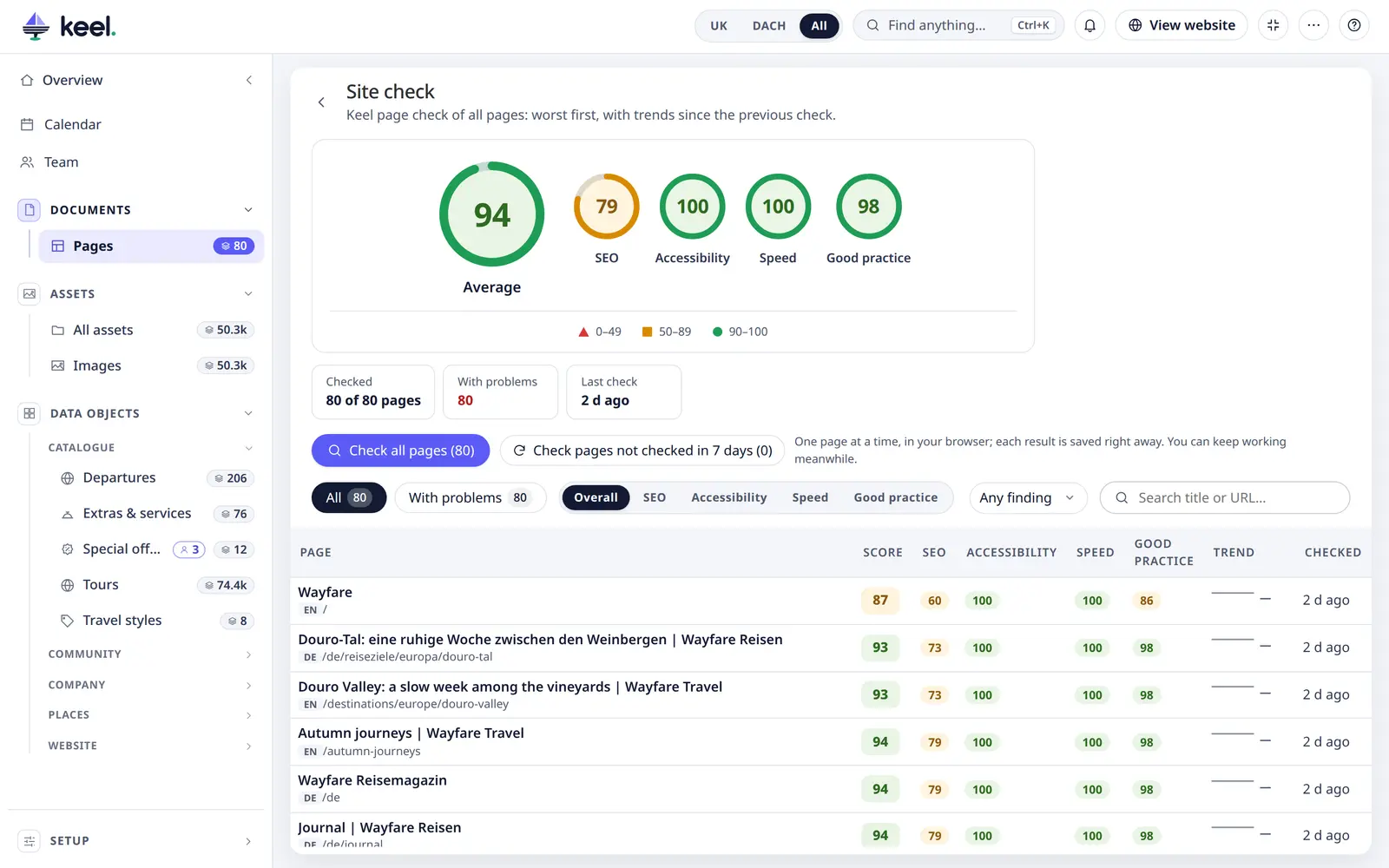
Site check (the button above the page list) checks all pages one after another.
- Check all pages or Check pages not checked in 7 days.
- Results are sorted worst first, with the average scores on top and a trend against the previous check. The trend shows an arrow only for a change of 3 points or more; a smaller change says About the same as the previous check (the small line still shows the real scores). Before the first page is checked, it says No pages checked yet with the Check all pages button.
- Filter: All, With problems, Not checked, Could not be checked, No access. Pages you are not allowed to see are listed under No access and never count as a score of 0.
- The Pages list gets a Score column with the last overall score.
- Old results stay as history, so you can see whether the site gets better.
The Site check runs in your browser, one page at a time – keep the tab open. If you close it halfway, the pages already checked are kept: next time it says Checked 212 of 530 and you press Continue. Every user has their own run. Only one Site check per browser can run at a time.
Good to know
- The check sees the published page as a visitor gets it: unpublished pages and objects (for example draft offers in a list) are left out, texts that are not translated show the fallback language, and the page gets a fresh, empty session of its own – never yours.
- The check is measured in your browser, in a separate, isolated copy of the page. Some scripts do not run there and files from other sites are not loaded. Google's numbers may therefore differ. Keel says so under the scores, and tells you which files were left out.
- Console errors that only the isolated copy causes (a library from another site that was left out, requests the copy cannot send, Script error.) do not count against the page. They are listed under Not everything could be checked instead.
- For public pages that start with
https://, Open in PageSpeed Insights opens Google's own test. This is the only link that leaves Keel; nothing is sent by Keel itself. - Page weight is the weight of the first load. If not every file could be weighed, it says at least – and the weight is then never listed among the checks that passed.
- Speed values such as LCP and CLS are estimates from this one measurement; run the check again if a number looks odd.
- Speed is made steady, so the same unchanged page gets the same Speed score on every run:
- Layout moved (CLS) counts only what a visitor could see: shifts from the first moment the page is shown until 1.5 s after it has loaded, and only the largest burst of shifts. A layout the browser works out before anything is on screen does not count.
- A value must be clearly over a limit to count: a layout shift more than 0.01 above 0.1 (warning) or 0.25 (problem); the server time and LCP more than 10 % above their limit (with the default 2 s for the server: from 2.2 s). A page right at a limit therefore does not jump between passed and a warning from one run to the next.
- A page whose script runs in an endless loop can freeze the admin tab while it is checked. If that happens, close the tab and ask a developer to look at that page's script.
- A page that cannot be rendered (for example because of a template error) shows This page could not be rendered and a Try again button.
- Rights: running a check needs the right to view the page; otherwise Keel says You are not allowed to view this page. Storing its result – the scores in the Pages list, the score history and the Site check – needs the right to save the page. Someone who may only view a page still sees the result of their own check, but it is not stored: You may run the check, but storing its result needs the right to save this page.
Safe to run, and what it costs
What the check protects. In your browser the page runs in an isolated, sandboxed copy. Its scripts cannot reach Keel, the Pimcore admin, your cookies or your login. Keel sends nothing to outside services; the only exception is Open in PageSpeed Insights, and only when you click it.
What it does on the server. Before your browser checks it, the page is built on the server by the website's own
page code, the way a visit builds it. So whatever the site's code does on every page view – a visit counter, a log
line, a call to an outside service – also happens once for each page you check. A few things still come from your
own admin session (for developers: the logged-in admin user, $_SESSION and Tool::isFrontend()), so a template that
shows something only to signed-in users shows it in the check too. If you are not sure what your site's pages do on a
visit, ask your developer.
What a Site check costs. A Site check is roughly one visitor opening each page – the page with its own images, CSS and scripts – one page at a time for each person running it. Your browser does the checking: a few seconds of computer time per page, and up to the time limit (20 seconds unless your developer changed it) for a slow page. Each checked page writes one small entry to the database. On a big site, run a full Site check outside the busiest hours.
The limits used here – title and description lengths, speed limits, the accessibility level, the 20-second wait, the 10 results kept per page, the 7 days after which a Site check result is old – are the defaults. A developer can change them, or leave single checks out: Setup → Keel page check.
See also Pages: settings & SEO.