
Assets
Assets in the menu shows the project's files: All assets, then Images, Videos, Documents (PDF, Word, Excel, text) and Other files (audio, ZIP…). A kind only appears when there are such files.
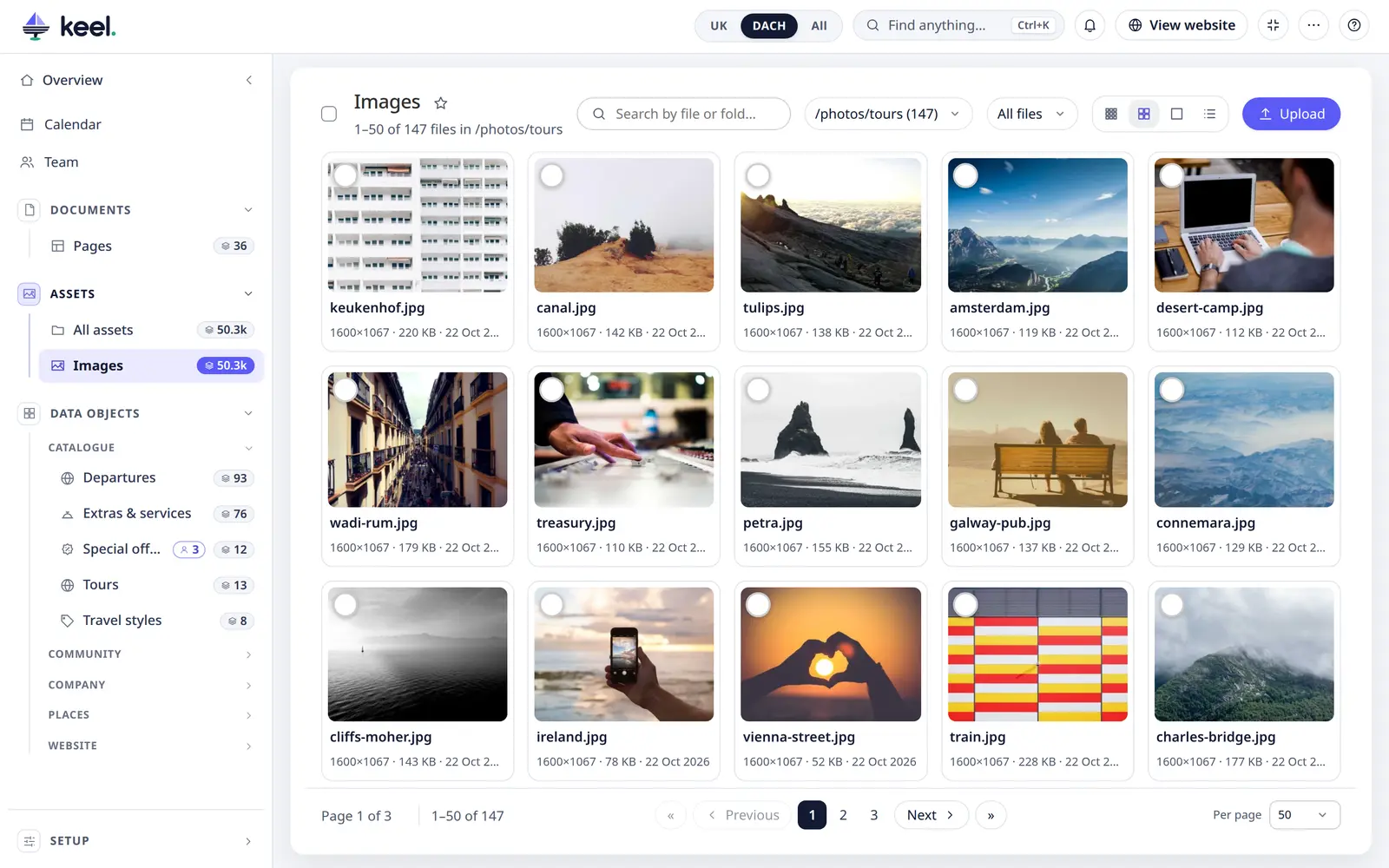
Browse
- Search by file or folder name, or pick a folder in All folders.
- Show – next to the folder: All files, Images without alt text, Rights end within 30 days or Rights ended. Select all and the bar for several files keep to what is shown.
- Views – the buttons next to the folder: Small tiles, Medium tiles, Large tiles and List (name, folder, size, dimensions, changed).
- Pages – newest first, with the same pager as every list (50 files unless you choose another size); Per page (10–200) is on the far right.
Your view and page size are remembered in My view.
Upload
Click Upload, or drop files anywhere on the list. Files go to the folder you have chosen. Allowed: images (JPG, PNG, WebP, AVIF, GIF, SVG), video (MP4, WebM, MOV), audio (MP3, WAV), PDF and Office files, TXT, CSV and ZIP – up to 100 MB each.
If the same file is already in the library, Keel tells you before it uploads it again. Choose Open the existing file, Upload anyway or Skip. (Uploads in an item's editor are not checked.)
Edit a file
Click a file to open it.
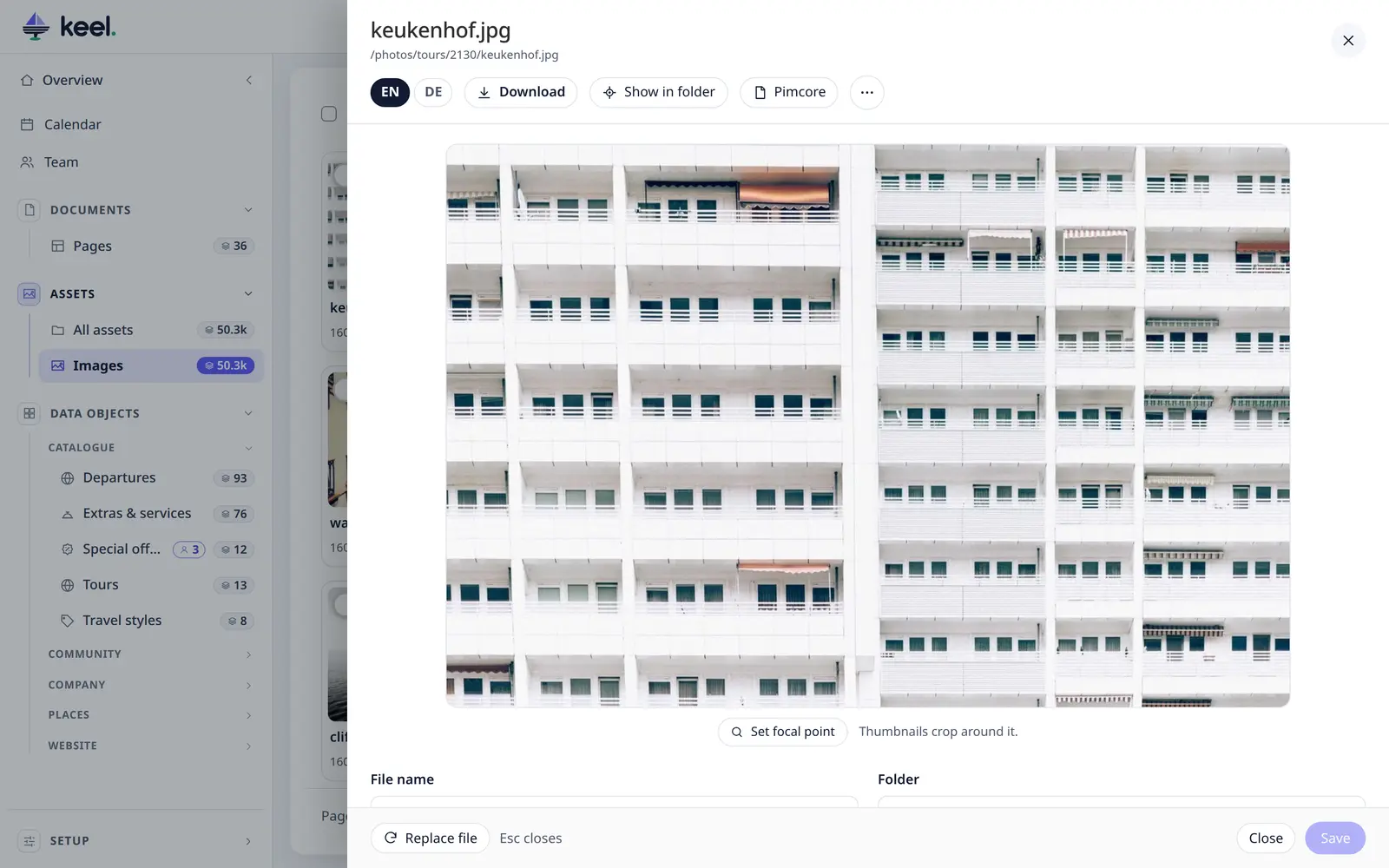
| File name, Folder | Rename or move the file; the extension stays. |
| Title, Alt text, Copyright | Per language – the alt text describes the image for screen readers and search engines. |
| Focal point | Click Set focal point, then the important spot. Thumbnails crop around it. |
| May be used until, Rights note | The file's usage rights – see Usage rights. |
| Used in | Where the file is used, by kind, e.g. Used in 17 · 14 pages, 3 items; items open in Keel. |
| Replace file | Upload a new version of the same kind. The old file is kept as a version. When the file is in use, Keel asks first. |
| System info | ID, path, URL (each with a copy button), type, size, dimensions, dates. |
The panel's footer has Replace file (when you may save), a hint, Close and Save, as in the item and page panels.
PDF preview
A PDF opens in your browser's own viewer at the top of the panel. Open in new tab shows it in a tab of its own; Download saves the file.
Downloads
Original, Web, Print and Office sizes, any of the project's thumbnails, or a Custom download with format, size and quality.
Change format
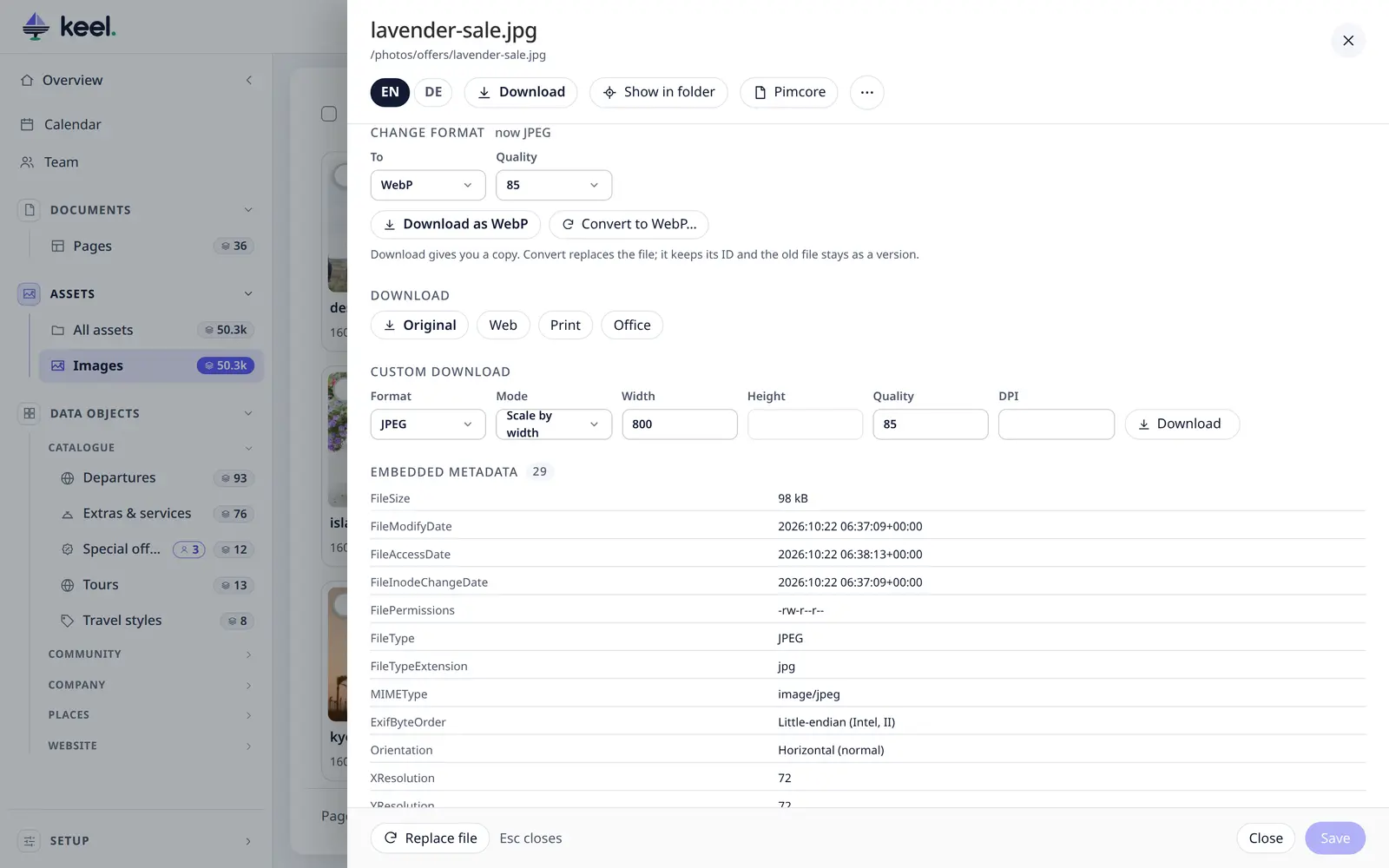
Turn an image into WebP, AVIF, PNG or JPEG at the quality you choose:
- Download as … gives you a converted copy – the stored file does not change.
- Convert to … replaces the stored file; it keeps its ID and the old file stays as a version.
Usage rights
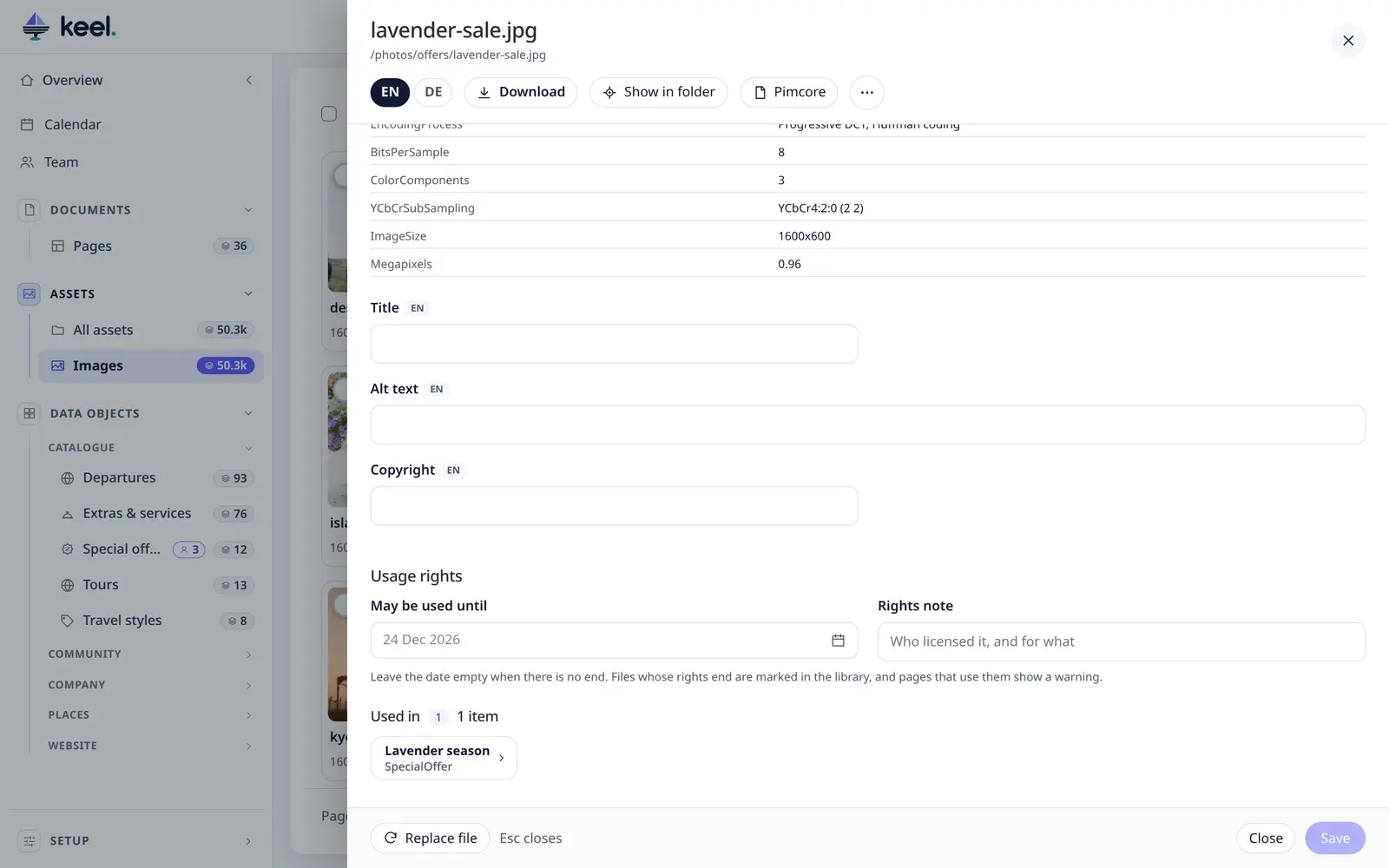
Photos you license often may only be used for a while. Fill in May be used until (a date) and, if you like, a Rights note (Licensed from Getty, web only) in the file's panel.
- From 30 days before that date, the file is marked Rights end soon – on its tile and in its panel. The last day itself still counts.
- After the date it is marked Rights ended, and the panel lists where the file is still used, so you can replace it.
- A page that uses such a file shows a warning at the top of its page settings.
- Show → Rights end within 30 days or Rights ended lists those files.
The date and note are stored with the file in Pimcore (as its properties keel_rights_until and keel_rights_note).
Alt texts
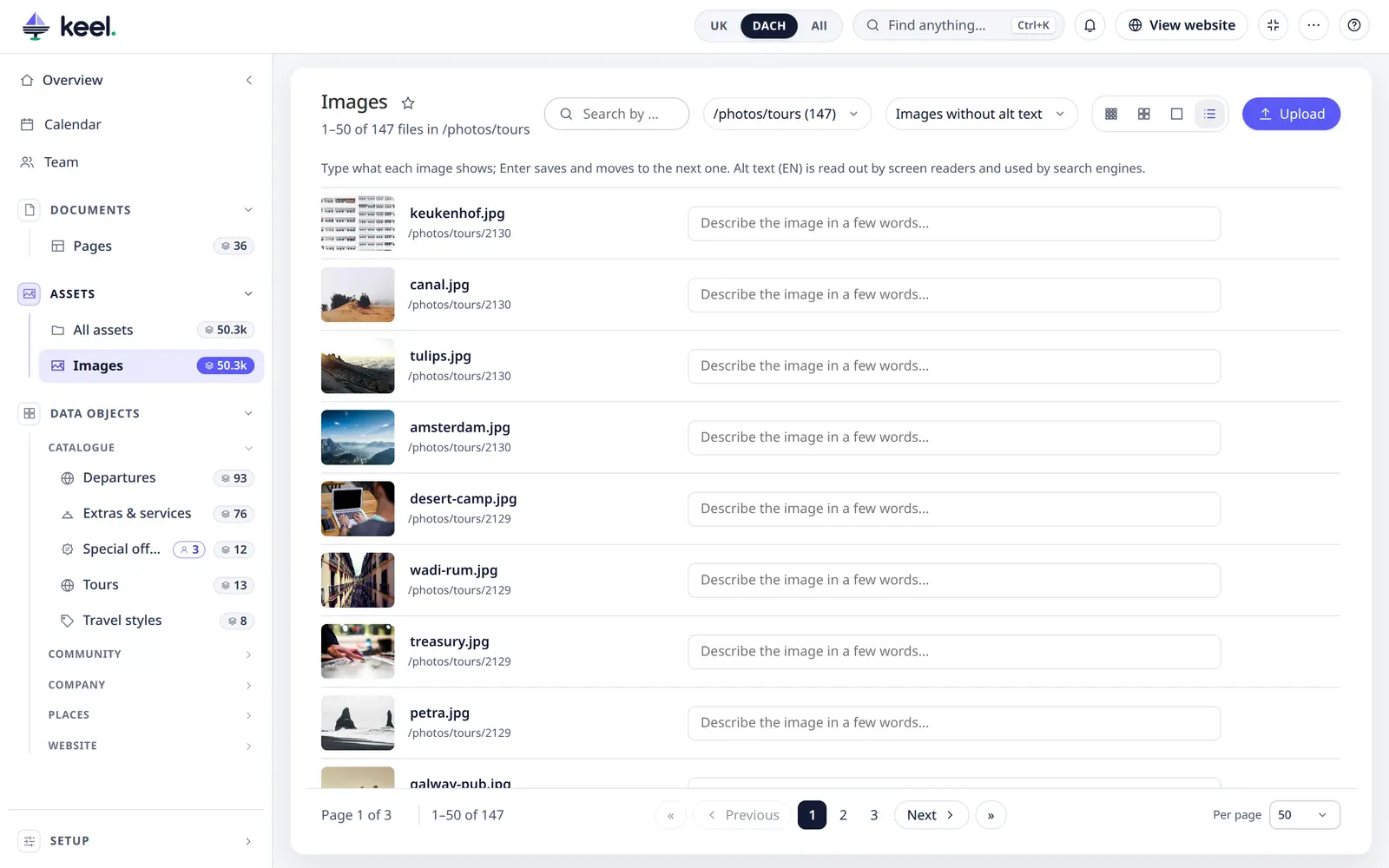
Show → Images without alt text turns the library into a list with a text field next to each image. Type the alt text and press Enter: it is saved and the next image's field gets the cursor. Only the alt text of the main language changes. An alt text set for all languages counts as present.
Several files at once
In Pimcore Studio, tick files with the round tick on each tile (in the List view: the square checkbox at the start of the row), or hold Shift and click to tick a range, or Ctrl/⌘ and click to add one. The checkbox in the header ticks the page. When the whole page is ticked and there are more files, the bar offers Select all … for the list, folder or search: up to 5,000 files, newest first. With more files it ticks the first 5,000 and says The first 5,000 are selected. Clear selection unticks them.
A bar then offers:
- Download as ZIP – one ZIP of the files you may view. Default limits: 500 files and 500 MB per ZIP (admins can change
uploads.zip_max_filesanduploads.zip_max_mbinkeel.yaml; in the beta they are fixed at 500 and 500 MB). A selection over the limit is refused as a whole, not cut off. A ZIP waits for you for one hour, and only two wait per person. - Move to… – to another folder, if you may rename the files and create in that folder. A file whose name already exists there is skipped.
- Delete – puts the files in Pimcore's recycle bin, where an admin can restore them. Files that are still used elsewhere are skipped; delete those one by one to confirm.
Keel lists every skipped file with the reason. Files you may not see show as #id.
Up to 50 files are moved or deleted in one go, with the result in the bar. More run as a bulk job from your browser in batches of 50: you can keep working in Keel, but closing the browser tab stops it.
Delete
Delete… in the file panel's header ⋯ menu moves the file to Pimcore's recycle bin (restorable there). When the file is still used somewhere, Keel names the pages and items and asks again.