
Compare items
Put two to four items of a list side by side and see where they differ. In Pimcore Studio.
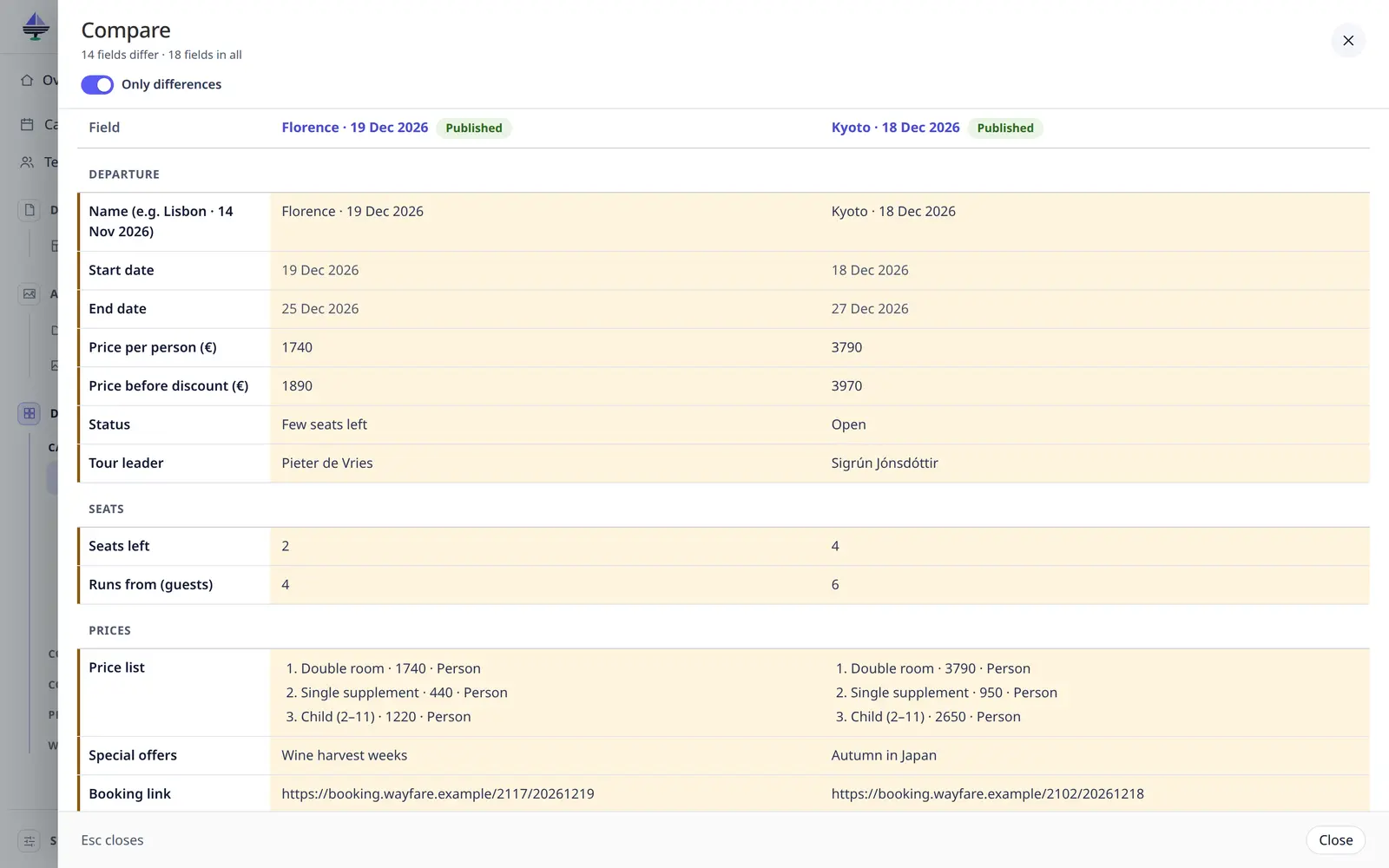
Compare
- In a list, tick two, three or four rows.
- Click Compare in the bar at the bottom.
The items are shown in columns, field by field, in the tabs of their form. The top says how many fields differ, for example 24 fields differ · 37 fields in all. Fields that differ are marked.
- Only differences is on at the start and hides the fields that are the same. Switch it off to see every field.
- Fields per language follow the language switch.
- Click an item's name at the top of its column to open it.
- Esc or Close closes the comparison.
How values are shown
As in a list: the names of choices and linked items, the words of a rich text, one line per block entry, Yes / No. Images, links, dates, bricks and attributes look as they do in the form.
Good to know
- Comparing changes nothing.
- Only items of the same kind can be compared.
- You see what you may see of each item. A field hidden from you on one item says Hidden from you on this item.