Overview & menu
The overview
Keel opens on the Overview – your start page.
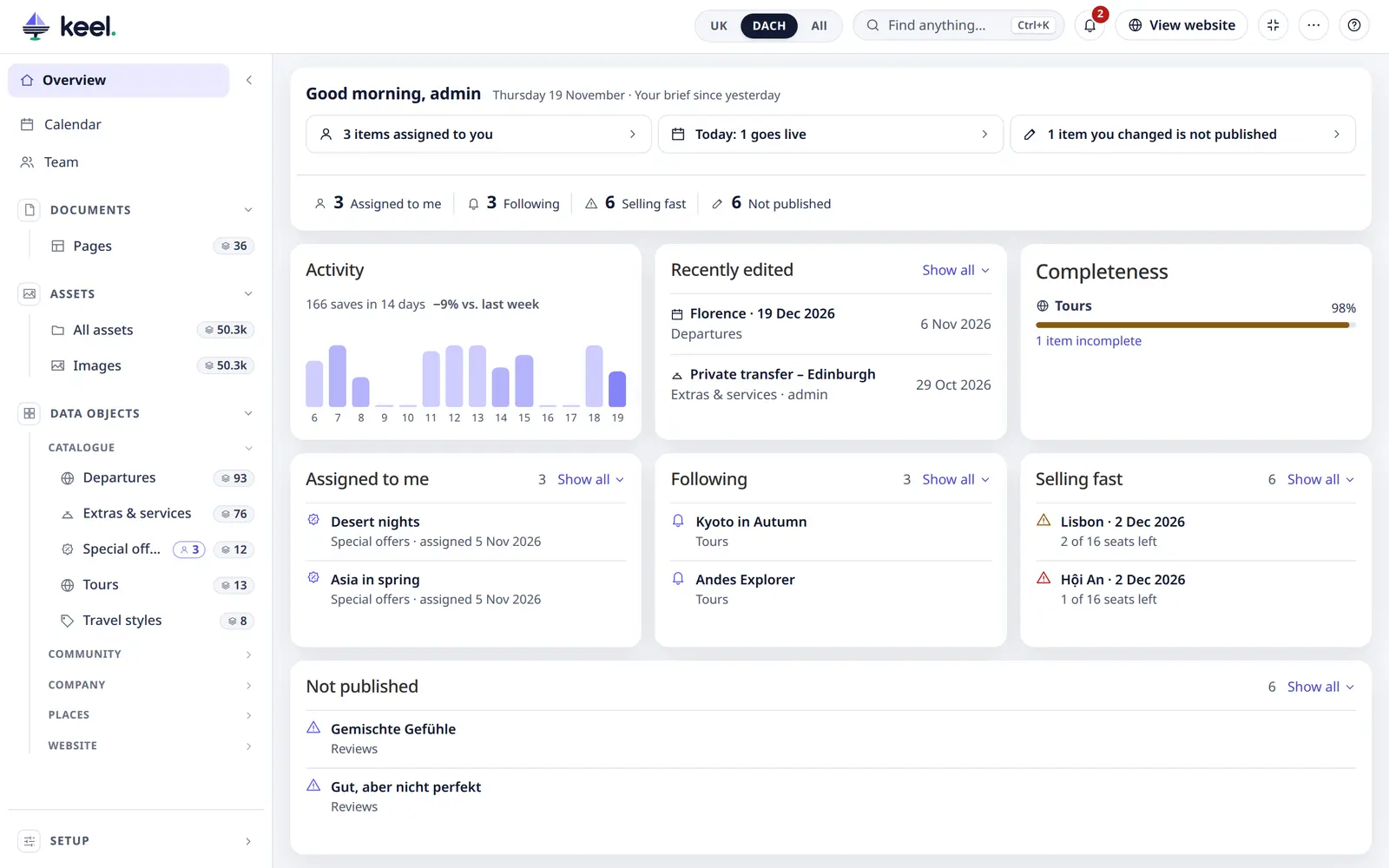
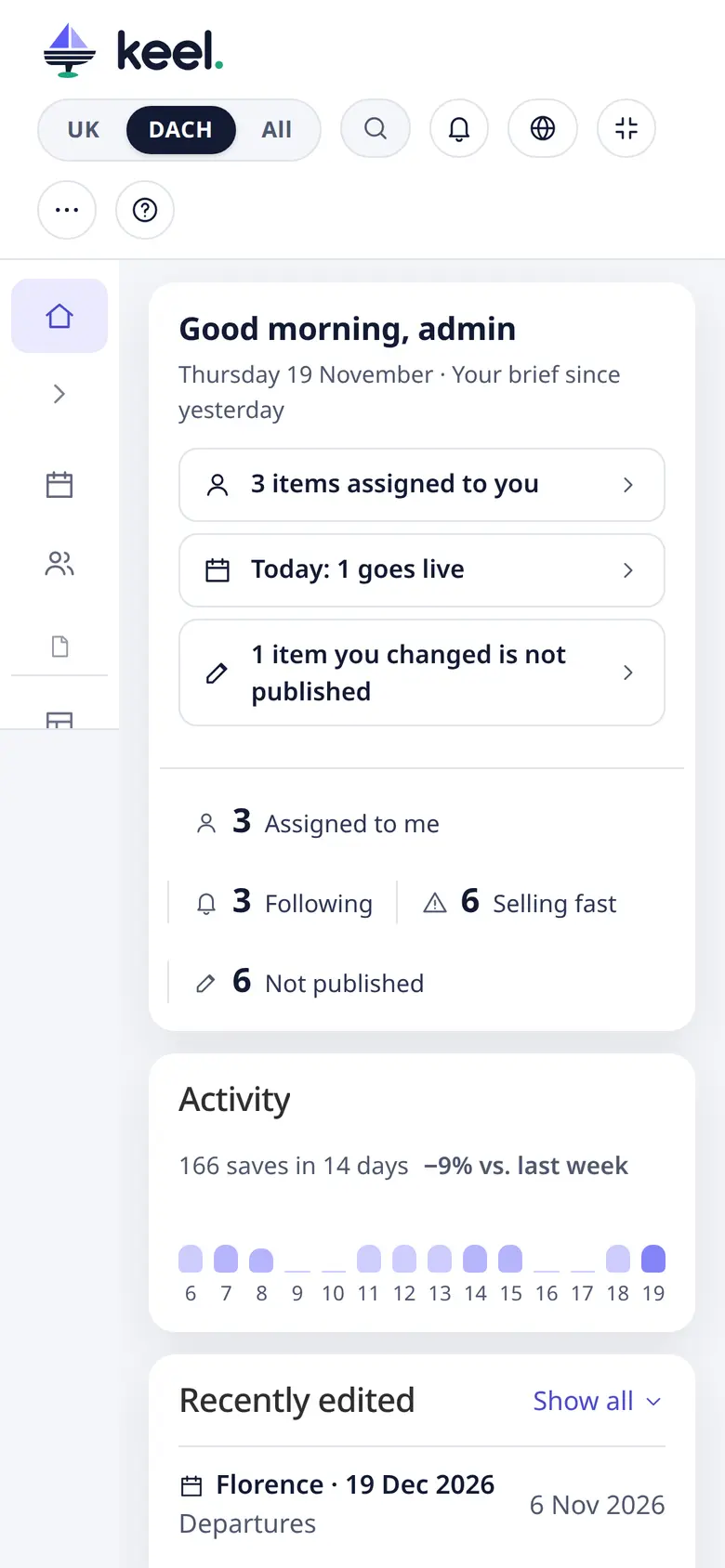
At the very top, the Daily brief greets you and lists what is new for you since yesterday: unread notifications, items assigned to you, followed items others changed, what goes live or offline today and tomorrow, your drafts and how much the team saved. Each line opens those items; lines with nothing to tell are left out. See Daily brief.
In the same box, under a thin line, a row of numbers shows your own work at a glance: Assigned to me, Following, Not published and the numbers of the other cards. Click a number to open what it counts – the list filtered to it, or the card, which lights up for a moment so you see which one it is. The row shows only when an admin has switched on Numbers at the top in Customize.
| Card | What it shows |
|---|---|
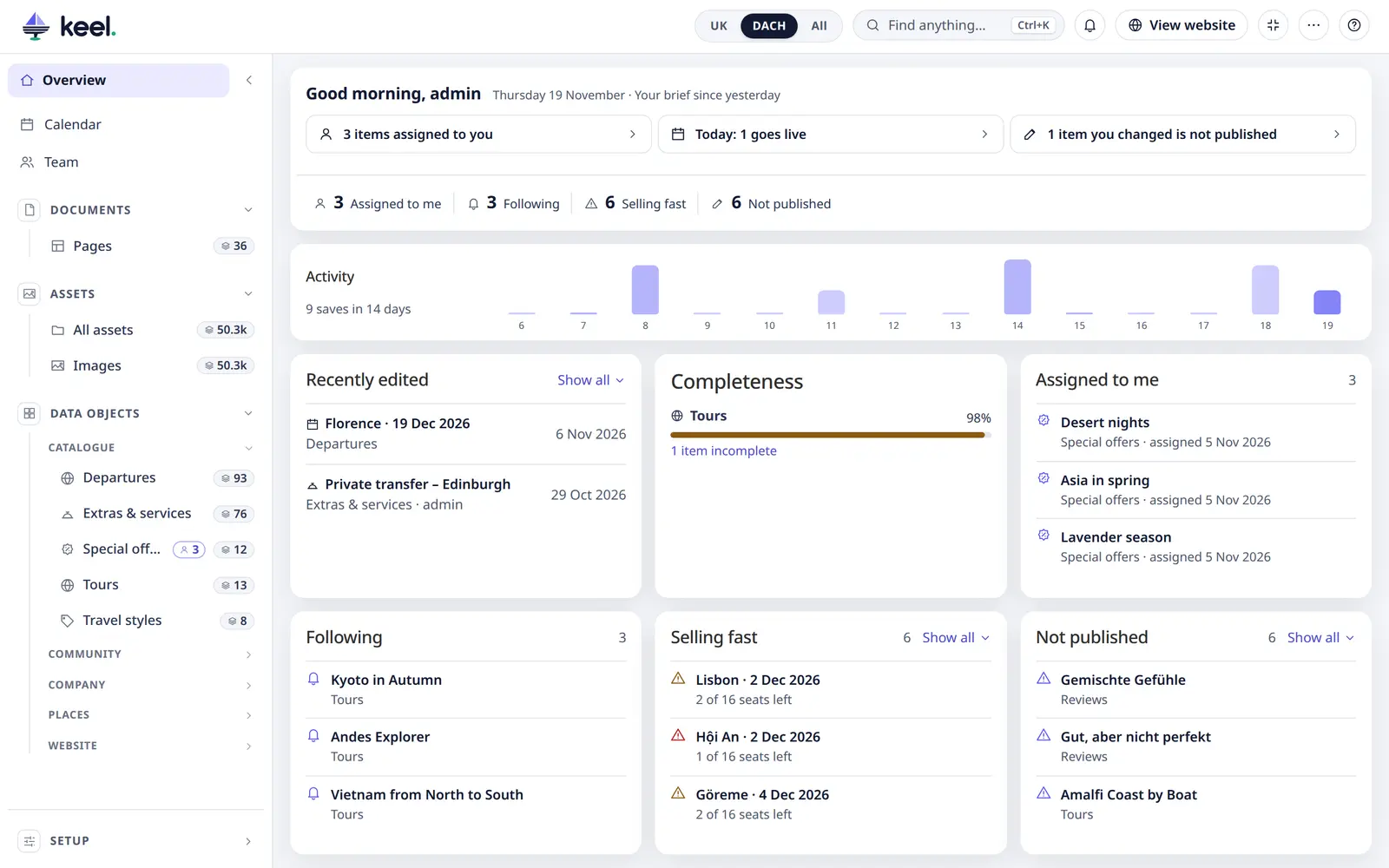
| Activity | Saves per day over the last 14 days, and the trend against last week. While there is little activity it is a low strip across the top instead of a card. |
| Recently edited | The 12 newest changes – who, when, and whether the item is still a draft |
| Assigned to me | Items assigned to you or one of your teams, the most recently assigned first, each with its list's icon and when it was assigned; above them a chip per kind (Properties 4 · Enquiries 3) opens that list filtered to yours. The number is how many there are in total. Only on projects that use assignments. |
| Following | The items you follow, the most recently followed first. Shown only while you follow something. |
| Not published | The newest items that are not published (drafts, not a workflow's Draft place); the number is how many there are in total |
| Completeness | Average score per list and how many items are incomplete (once a rule is on) |
| List tiles | One tile per list with its count and a + to add an item (off unless an admin turns it on) |
With little activity, the chart becomes a low strip above the cards:
Projects can add their own cards, for example Enquiries waiting. Click an item on any card to open it.
Each card shows as many rows as fit; Show all lists the rest inside the card – the cards keep their places. A card with nothing in it (Everything is published) has an ×: it hides the card for you, with Undo; My view shows it again.
Keel keeps itself up to date: lists and counts refresh after your own saves, when you come back to Keel after more than 30 seconds, and when you press R (or ⋯ → Refresh in the header).
The header
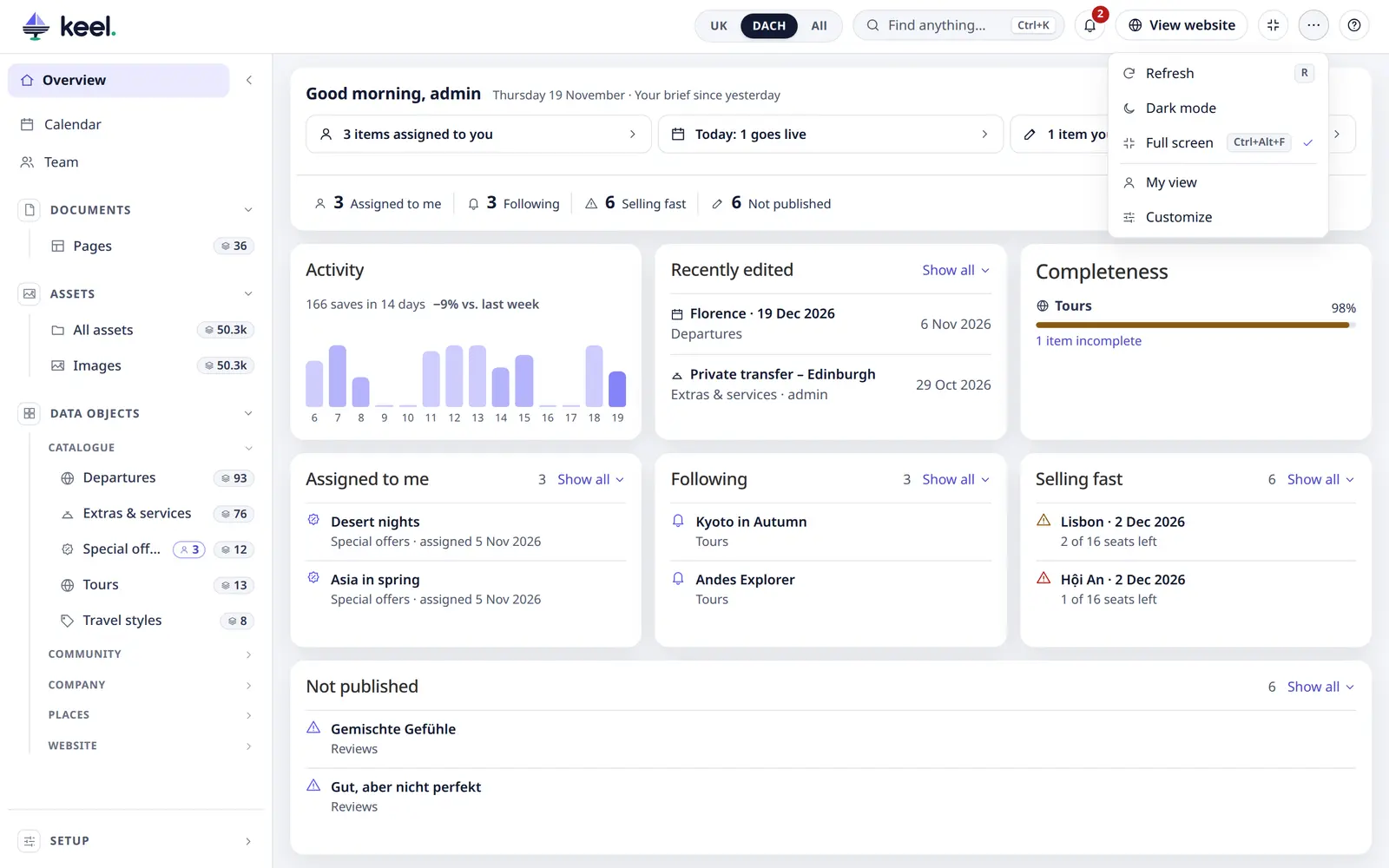
| Item | |
|---|---|
| Market switcher | Shown when the project has markets (or similar). Pick one to see only its content; All shows everything. |
| Find anything… | Opens the finder: items in all your lists, a list, or a new item – see Finding things. Ctrl K |
| 🔔 Bell | Your notifications, with the number not read yet – see Notifications & following. Pimcore Studio only. |
| View website | Opens the website in a new tab |
| ⋯ | Refresh (R), Dark mode (on / off; until you choose, Keel follows your computer's setting) and Full screen (Ctrl Alt F, ⌘ ⌥ F on a Mac). |
| ? | Keyboard shortcuts (Ctrl I) and Take the tour (the first-time tour again) |
Full screen makes Keel fill the browser tab, above Pimcore's menus and tabs. While it is on, an Exit full screen button stays in the header next to ⋯.
The menu
The menu is always on the left, in this order:
- Overview
- Calendar – everything planned to be published or unpublished – see Content calendar (Pimcore Studio)
- Team – open work per person, for admins – see Team overview (Pimcore Studio)
- Favourites – the lists and pages you starred, always shown (only when you have some)
- Documents – Pages (pages that need SEO work are under the Needs attention filter)
- Assets – All assets, then Images, Videos, Documents and Other files (each only when there are such files)
- Data objects – one entry per list, grouped like the classes in Pimcore, each with its count (a small stack and the number; from 10,000 shortened, e.g. 12k – hover for the exact number). Lists with assignments also show a small outlined number with a person: how many of their items are assigned to you.
- Setup – Data model, History, Bulk jobs and My view, and for admins Settings: a folding group with Customize, Completeness (when switched on), Field access and Scripts & tracking. In the slim (icons only) menu its pages show as icons.
Folding
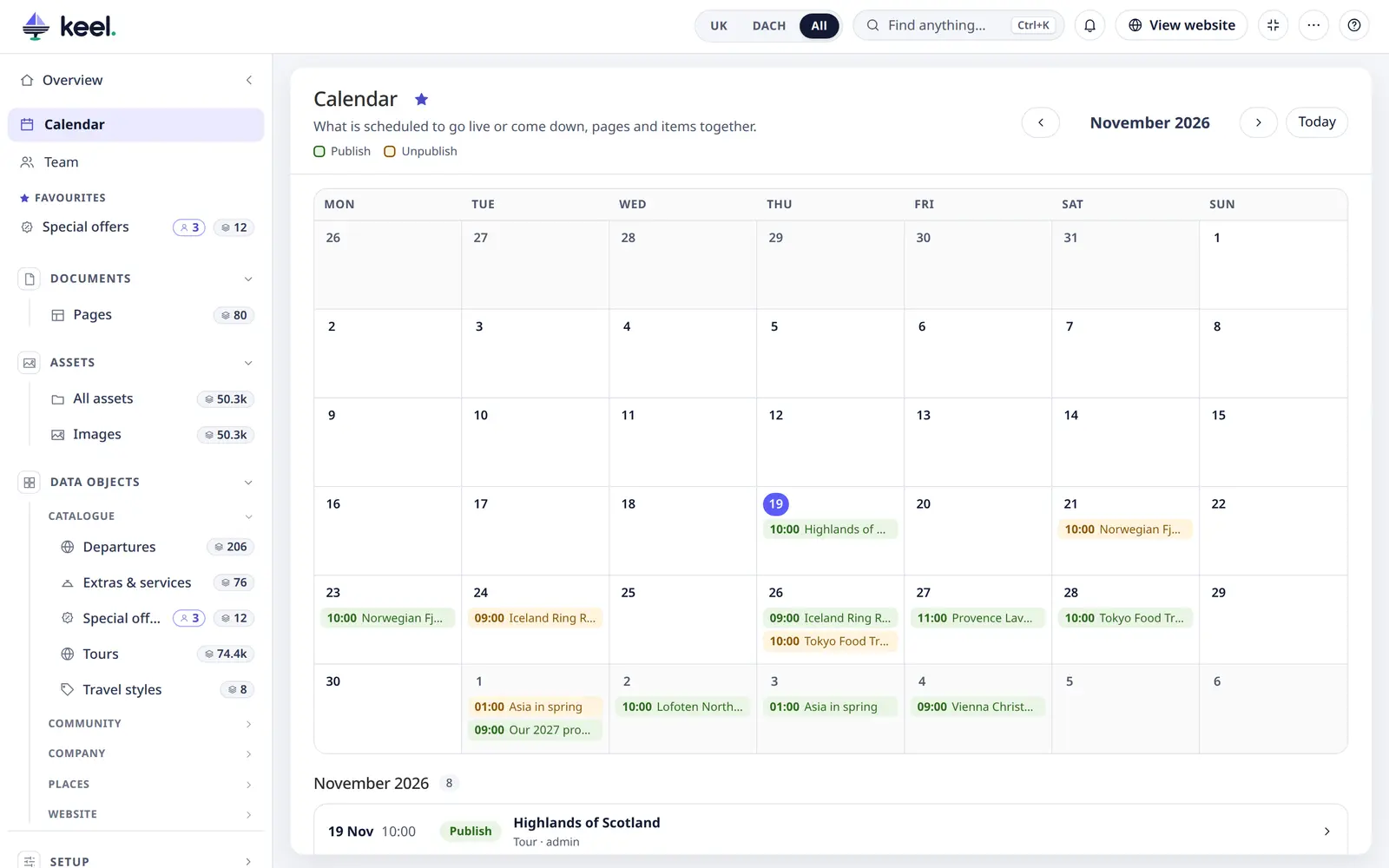
The areas (Documents, Assets, Data objects, Setup) and the groups of lists inside them start folded. Only the area and group you are in open by themselves, so the menu stays short.
- Click an area's or group's name to open or fold it.
- A group you open yourself stays open, also when you go elsewhere. Keel remembers it with your user.
- If you fold the area you are in, it stays folded until you open it again.
My view is your own look, start page, menu, lists and interface language (English, Croatian or German; the project may offer fewer). It follows you to any browser. More, languages
Collapse shrinks the menu to icons only – handy on small screens. In the slim menu, hover an icon to see its name. Collapse and Overview stay at the top while the menu scrolls.
Favourites
Click the ☆ next to the title of any list or page – Tours, Images, Pages, Data model… – to add it to Favourites near the top of the menu. Calendar, Team and Bulk jobs can be starred too. Click it again (★) to remove it. Favourites appear in the order you add them.
Keyboard
On a focused menu entry, press F to add or remove it.
Favourites, folded areas, the slim menu and dark mode are saved with your user, so they follow you to any browser.
The favourites wheel
Hold the mouse wheel (the middle button) anywhere in Keel: a ring opens around the pointer with Overview, Pages, Find anything and then your favourites. Move towards one and let go – it opens. Let go without pointing at one and the ring stays open: click a slice when you're ready; a click in the middle or Esc closes it.
From the keyboard press G: the arrows or Tab move round, Enter opens, and 1–9 open a slice by its number. On links the middle button still opens a new tab, and in text fields it works as before.
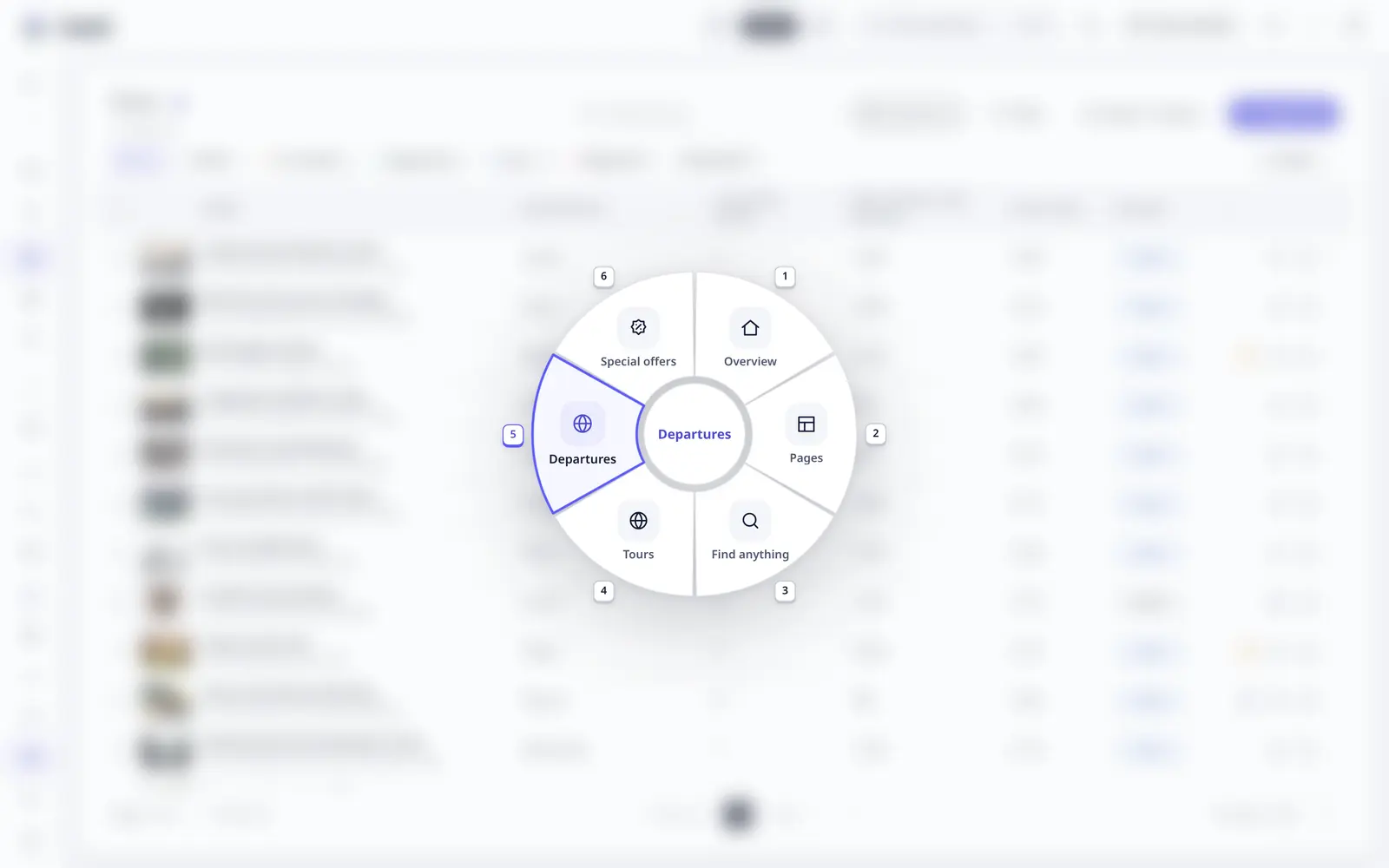
What comes first on the wheel is set by an admin in Customize → Overview; they can also leave the favourites out.
On a phone
Keel works in a phone's browser too. The menu starts as icons, lists and the editor fit the narrow screen.