
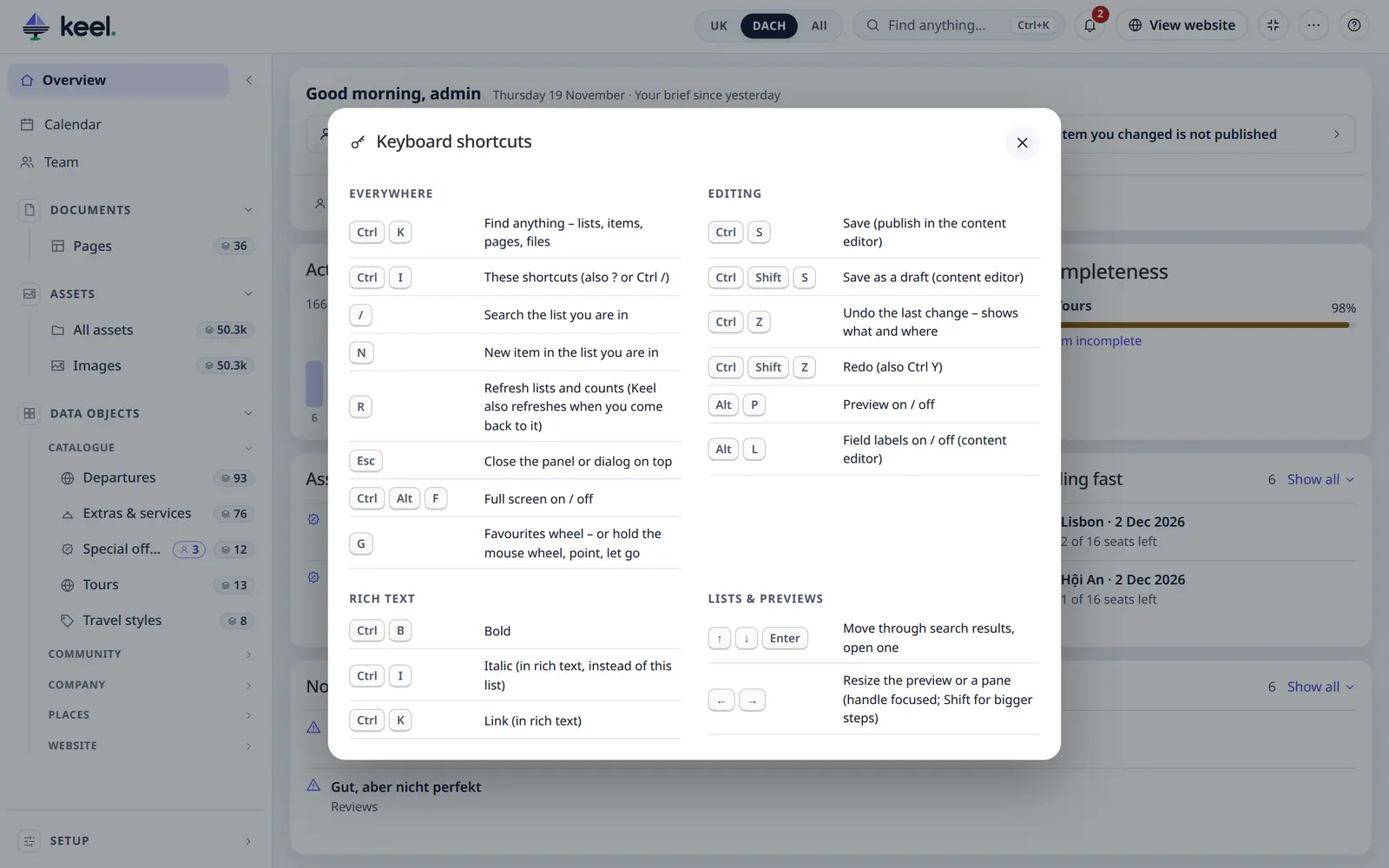
Keyboard shortcuts
Press Ctrl I (or ?) anywhere in Keel to see this list, or use the ? button at the right of the header → Keyboard shortcuts.
On a Mac, use ⌘ instead of Ctrl.
Everywhere
| Keys | |
|---|---|
| Ctrl K | Find anything – items in your lists, a list, a new item |
| Ctrl I · ? · Ctrl / | Show the shortcuts |
| / | Search the list you are in |
| N | New item in the list you are in |
| R | Refresh lists and counts (also ⋯ → Refresh in the header) |
| F | On a focused menu entry: add to or remove from Favourites |
| Esc | Close the panel or dialog on top |
| Ctrl Alt F | Full screen on / off (also ⋯ → Full screen in the header) – Keel fills the browser tab, above Pimcore's menus and tabs; it is not the browser's own full screen (⌘ ⌥ F on a Mac; not while typing) |
| G | The favourites wheel – or hold the mouse wheel, point, let go |
Editing
| Keys | |
|---|---|
| Ctrl S | Save (publish in the content editor) |
| Ctrl Shift S | Save as a draft (content editor) |
| Ctrl Z | Undo – shows what and where |
| Ctrl Shift Z · Ctrl Y | Redo |
| Alt P | Preview on / off |
| Alt L | Field labels on / off in the content editor (Show labels) |
Rich text
| Keys | |
|---|---|
| Ctrl B | Bold |
| Ctrl I | Italic |
| Ctrl K | Link (in the content editor) |
Lists and previews
| Keys | |
|---|---|
| ↑ ↓ Enter | Move through search results, open one |
| ← → | Resize the preview or a pane when its handle is focused (Shift for bigger steps) |
In a list's rows: ↑ ↓ Page Up Page Down Home End move between rows, → ← through a row's controls, Space ticks, Enter opens (see Lists → Keyboard).
The first time you open an item, the editor shows the main keys under the form; after that they are only here.
/, N and R work only while you are not typing and no panel is open.
In Pimcore Studio, Ctrl Shift F is Studio's own search; Keel's full screen is Ctrl Alt F.